Paimon

 TapData Enterprise can be deployed in your local data center, making it suitable for scenarios with strict requirements on data sensitivity or network isolation. It can serve to build real-time data warehouses, enable real-time data exchange, data migration, and more.
 TapData Community is an open-source data integration platform that provides basic data synchronization and transformation capabilities. This helps you quickly explore and implement data integration projects. As your project or business grows, you can seamlessly upgrade to TapData Cloud or TapData Enterprise to access more advanced features and service support.
Apache Paimon is a lake format that lets you build a real-time Lakehouse with Flink and Spark. TapData can stream data into Paimon tables for an always-up-to-date data lake.
Supported versions
Paimon 0.6 and later (0.8.2+ recommended)
Supported operations
DML only: INSERT, UPDATE, DELETE
Supported data types
All Paimon 0.6+ types. To preserve precision, follow the official docs when mapping columns—for example, use INT32 for DATE in Parquet files.
Add a Type Modification Processor to the job if you need to cast columns to a different Paimon type.
Considerations
- To avoid write conflicts and reduce compaction pressure, disable multi-threaded writes in the target node and set batch size to 1,000 rows and timeout to 1,000 ms.
- Always define a primary key for efficient upserts and deletes; for large tables, use partitioning to speed up queries and writes.
- Paimon supports primary keys only (no secondary indexes) and does not allow runtime schema evolution.
Connect to Paimon
-
Log in to TapData platform.
-
In the left navigation bar, click Connections.
-
On the right side of the page, click Create.
-
In the pop-up dialog, search for and select Paimon.
-
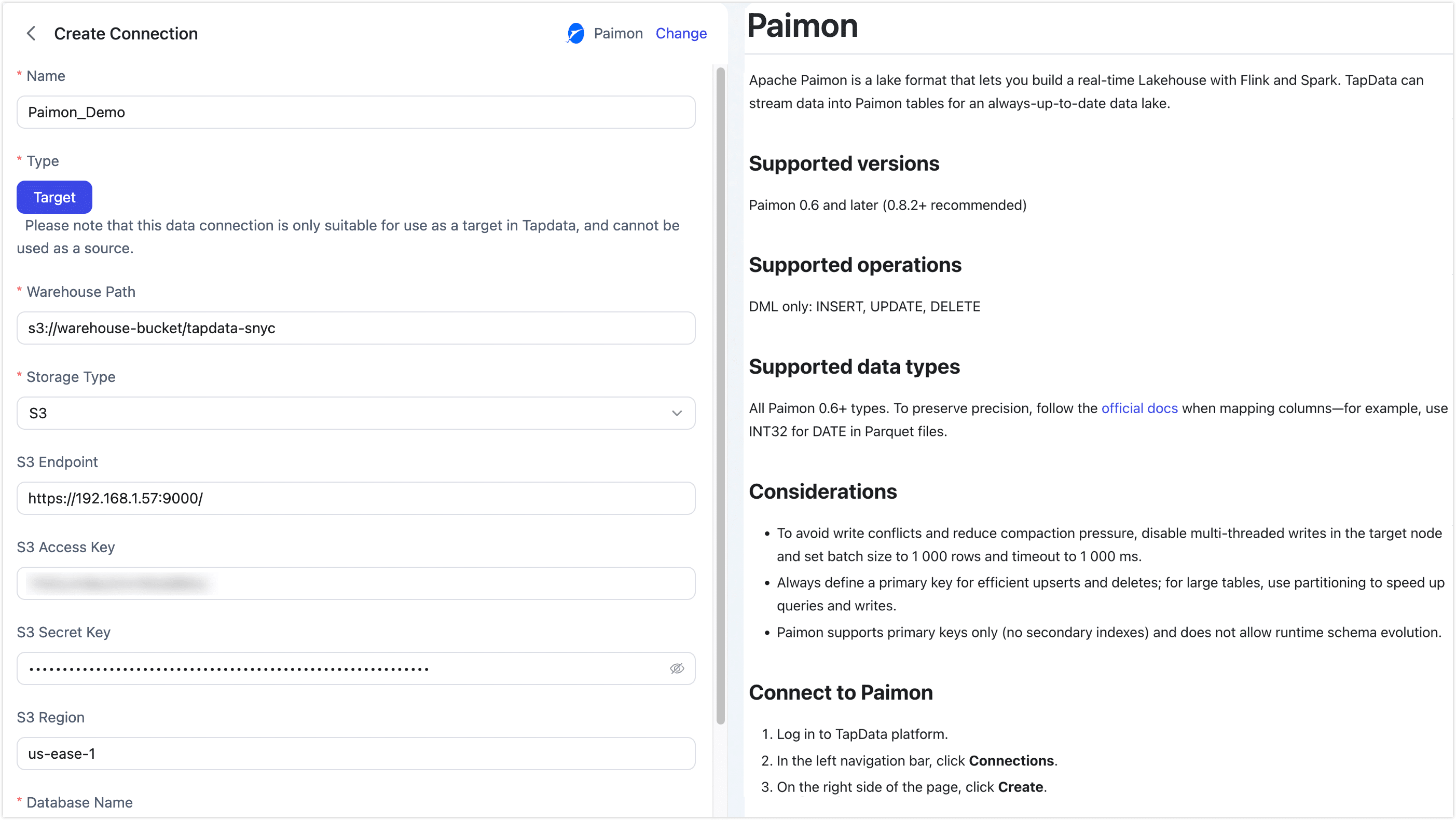
Fill in the connection details as shown below.
Basic Settings
-
Name: Enter a meaningful and unique name.
-
Type: Only supports using Paimon as a target database.
-
Warehouse Path: Enter the root path for Paimon data based on the storage type.
- S3:
s3://bucket/path - HDFS:
hdfs://namenode:port/path - OSS:
oss://bucket/path - Local FS:
/local/path/to/warehouse
- S3:
-
Storage Type: TapData supports S3, HDFS, OSS, and Local FS, with each storage type having its own connection settings.
- S3
- HDFS
- OSS
- Local
Use this option for any S3-compatible object store—AWS S3, MinIO, or private-cloud solutions. Supply the endpoint, keys, and region (if required) so TapData can write Paimon data directly to your bucket.
- S3 Endpoint: full URL including protocol and port, e.g.
http://192.168.1.57:9000/ - S3 Access Key: the Access-Key ID that owns read/write permission on the bucket/path
- S3 Secret Key: the corresponding Secret-Access-Key
- S3 Region: the region where the bucket was created, e.g.
us-east-1
Choose this when your warehouse sits on Hadoop HDFS or any HCFS-compatible cluster. TapData writes through the standard HDFS client, so give it the NameNode host/port and the OS user it should impersonate.
- HDFS Host: NameNode hostname or IP, e.g.
192.168.1.57 - HDFS Port: NameNode RPC port, e.g.
9000or8020 - HDFS User: OS user that TapData will impersonate when writing, e.g.
hadoop
Pick this for Alibaba Cloud OSS or any other OSS-compatible provider. Enter the public or VPC endpoint, the access key pair, and TapData will create Paimon files inside the bucket you specify.
- OSS Endpoint: VPC or public endpoint, e.g.
https://oss-cn-hangzhou.aliyuncs.com(do not include the bucket name) - OSS Access Key: Access-Key ID that has read/write permission on the bucket/path
- OSS Secret Key: the corresponding Access-Key Secret
Local filesystem: Select this option if you want to store the Paimon warehouse on a local disk or an NFS mount that is visible to the TapData server. Make sure the directory is writable by the TapData OS user and that enough free space is available for both data and compaction temporary files.
-
Database Name: one connection maps to one database (default is
default). Create extra connections for additional databases.
Advanced Settings
- Agent Settings: Defaults to Platform automatic allocation, you can also manually specify an agent.
- Model Load Time: If there are less than 10,000 models in the data source, their schema will be updated every hour. But if the number of models exceeds 10,000, the refresh will take place daily at the time you have specified.
-
-
Click Test at the bottom; after it passes, click Save.
tipIf the test fails, follow the on-screen hints to fix the issue.
Advanced Node Features
When Paimon is used as the target node in a data replication or transformation task, you can further configure table creation and write-related settings in the node's advanced settings to better balance write performance, table layout, and storage cost.
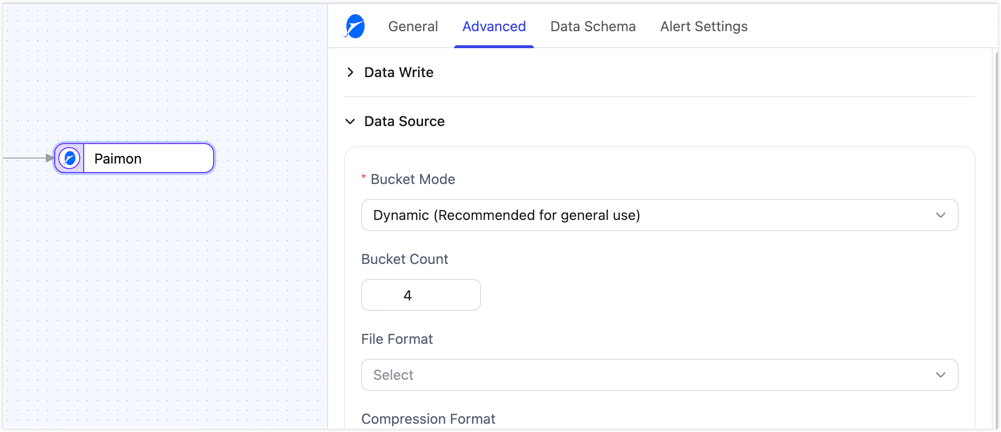
The table creation settings below mainly take effect when the target table does not exist and is created automatically by Tapdata. If the target table already exists, Tapdata keeps the existing table schema and table options instead of overwriting them.
| Configuration | Description |
|---|---|
| Hash Key | When enabled, if there are many primary key or update-condition fields, Tapdata automatically adds an _hash_key field to the Paimon table and uses it as the primary key to reduce write overhead in wide-key scenarios. Enable it only when many key fields are affecting write performance. |
| Partition Key | Specifies the partition fields for the target table. Leaving it empty means partitioning is disabled. It is recommended for large tables or scenarios where data needs to be organized by date or business dimension. |
| Bucket Mode | Supports Dynamic and Fixed modes. Dynamic mode is suitable for general scenarios and lets the system assign buckets automatically. Fixed mode usually provides more stable write performance, but it should be used together with Bucket Count. |
| Bucket Count | Takes effect only when Bucket Mode is set to Fixed. It defines the number of buckets, with a default value of 4. Set it based on data volume, write concurrency, and small-file control requirements. |
| File Format | Specifies the underlying file format used when the table is created. Supported formats include ORC, Parquet, Avro, CSV, JSON, Lance, and Blob. Choose the format based on query engine compatibility, compression ratio, and read/write performance requirements. |
| Compression Format | Specifies the compression format for data files. Supported options include None, Snappy, LZ4, ZSTD, GZIP, and BZIP2. This setting usually involves a trade-off between compression ratio, CPU usage, and read/write performance. |
| Table Properties | Lets you append Paimon table properties in key-value form for finer-grained control over table behavior. This is useful when you need to customize table creation parameters further. |
| Write Buffer Size (MB) | Controls the in-memory buffer size used for writes. The default value is 256 MB. Increasing it can improve throughput, but it also increases memory consumption. |
| Write Threads | Controls the number of parallel write threads. The default value is 4. Increasing it can improve write concurrency when enough resources are available, but it also increases resource usage. |
| Enable Auto Compaction | Controls whether automatic compaction is enabled. When enabled, it helps reduce small files and improve query performance. When disabled, it reduces compaction overhead but may result in more small files. |
| Compaction Interval (minutes) | Takes effect after Enable Auto Compaction is enabled. It controls how often automatic compaction runs, with a default value of 30 minutes. |
| Target File Size (MB) | Controls the target size of data files. The default value is 128 MB. Increasing it can help reduce the number of small files, but it also increases the processing cost of each individual file. |
| Enable Primary Key Update Detection | When enabled, if a primary key value changes, Tapdata converts the update into a delete of the old record followed by an insert of the new record. This feature requires the source to provide before-update data. If that data is unavailable, the task will fail, and enabling this feature will reduce update performance. |